
First sign-in
Sign in securely and recognize the first Persate screen.
Open persate.com and select Sign in. The public sign-in page starts with the email address and also offers Google and Microsoft identity-provider options.
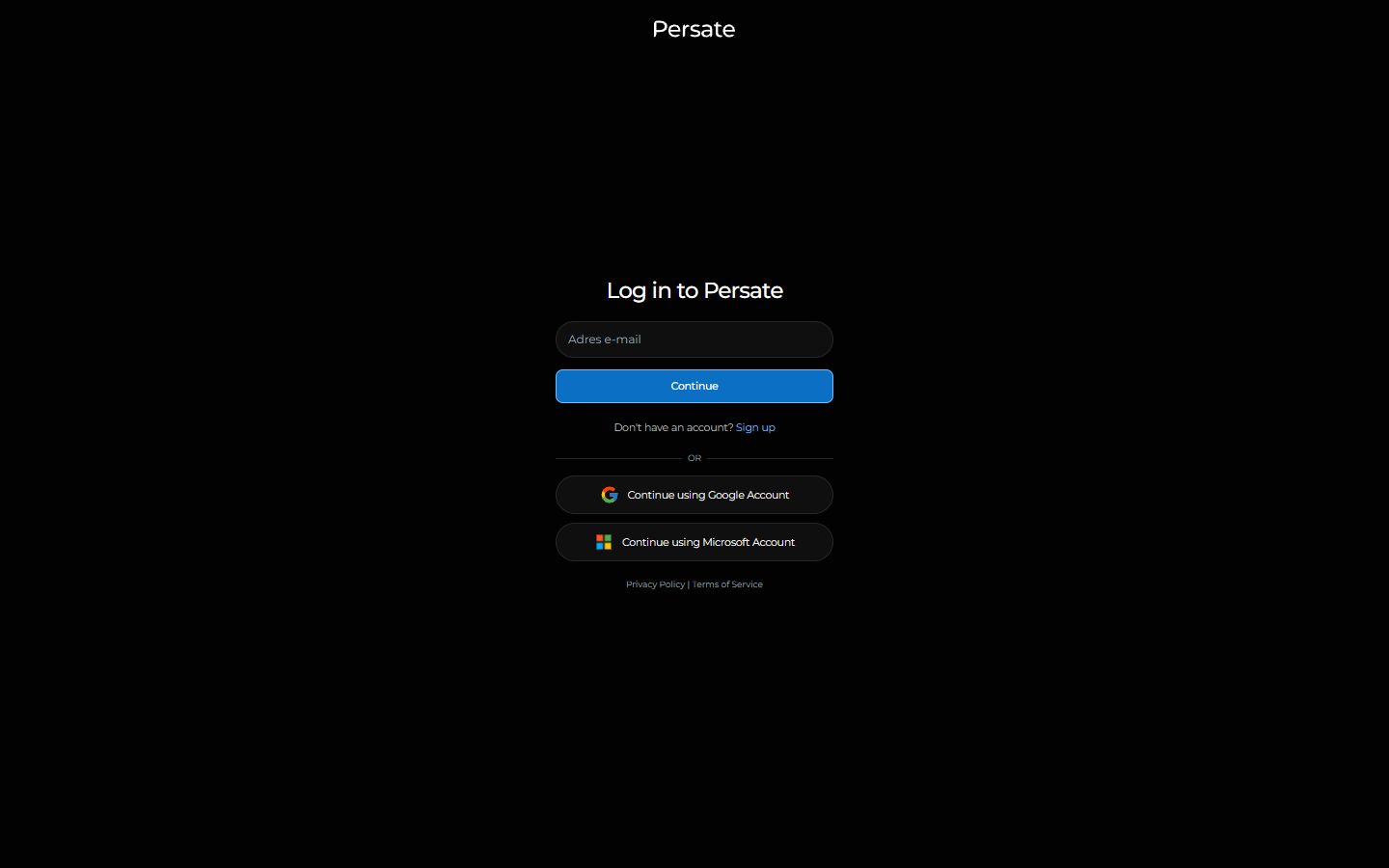
Password sign-in
- Enter the account email address and select Continue.
- Enter the password and select Sign In.
- Enter the current six-digit authenticator code when prompted.
If no authenticator is enrolled, Persate opens Set Up Authenticator. Scan the QR code or enter the displayed key manually, then confirm with a current code. Two-step verification is required for Persate accounts.
On the verification screen, Trust this browser for 30 days can skip the authenticator challenge on later sign-ins in that browser. Use it only on a private, managed browser. Sensitive actions can still require verification, and trust can be revoked under Settings → Security & Privacy.
Google or Microsoft sign-in
Select the provider on the first sign-in screen and complete the provider's authorization flow. Use the provider identity assigned to the Persate account. A successful provider sign-in can still require Persate two-step verification unless the browser is trusted.
Password reset
The current first screen does not show a password-reset link. For a password-based account, open persate.com/password-reset, enter the email address, and follow the message if one is delivered. Persate uses a neutral response so the screen does not reveal whether an account exists.
Provider-managed passwords must be reset with Google, Microsoft, or the organization's identity provider.
After sign-in
Persate opens Cockpit. The visible sidebar is assembled from organization entitlements, your role, group memberships, and assigned Labs. Therefore, a missing navigation item can be an access decision rather than a loading problem.
Use the global search control in the top navigation to search across entitled areas. Use the profile menu for Settings and sign-out actions. Repository upload controls appear only when Repository is enabled.
Troubleshooting
- Invalid credentials provided — verify the email and password; do not repeatedly retry a locked or unknown account.
- Invalid code. Please try again — use a fresh authenticator code and confirm that the device clock is accurate.
- Provider or OAuth error — restart from the Persate sign-in page and use the assigned provider account.
- Access Denied after authentication — the account is valid but lacks the required tenant, role, group, or feature access; contact a workspace administrator.